















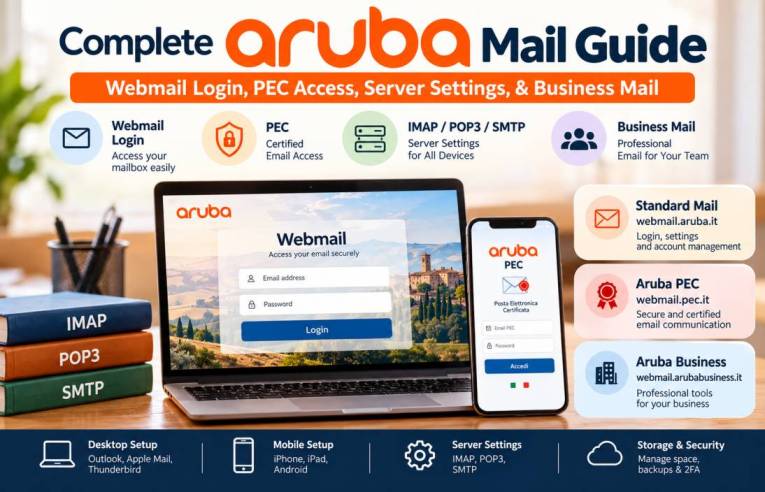
Need help with Aruba Webmail Login, PEC access, or business email setup? Aruba offers several email services for personal use, domain mailboxes, and certified business communication.
You can check your inbox in a browser or connect your account to Outlook, Apple Mail, Thunderbird, or a phone app. The right setup depends on your mailbox type.
This guide covers Aruba Webmail login, password recovery, PEC access, business mail tools, storage options, and the IMAP, POP3, and SMTP settings you need.
How to Access Aruba Webmail & Standard Mail Login
The official portal for standard Aruba mailboxes is webmail.aruba.it. It supports domain email addresses, postmaster accounts, and free @aruba.it and @technet.it mailboxes. (Aruba Webmail access guide)
Step-by-Step Direct Webmail Login
Follow these steps for Aruba Webmail Login:
- Open webmail.aruba.it.
- Enter your full email address, such as info@yourdomain.it.
- Enter the password linked to that mailbox.
- Select Accedi.
- Wait for your inbox to load.
Use the full address, including the domain after @. For example, a business mailbox should use info@yourdomain.it, not just info.
If you manage the email accounts for your domain, sign in with the postmaster address and its password. This account opens the domain management panel, where an administrator can create mailboxes, manage aliases, set automatic replies, and change mailbox passwords. (Aruba Webmail access guide)
For the Italian search term Accedi alla Webmail Aruba, use the official portal rather than an unfamiliar login page.
Troubleshooting Webmail Login Issues & Password Recovery
A failed login can have several causes. Check these points before changing your account settings.
- Incorrect credentials: Check the full email address and password for typing errors.
- Forgotten password: Use the password recovery option on the official login page.
- Old saved password: Update the password stored in your browser or mail app after a reset.
- Browser cache problems: Try a private window or clear the browser cache and cookies.
- Account access issues: Check for security alerts or account-specific messages from Aruba.
- Connection errors: Test another browser or network if the login page fails to load.
If you forgot your password, open the official Aruba Webmail login page and select the forgotten-password option, where available. Follow the recovery steps for your mailbox type.
If you manage a domain mailbox, the postmaster administrator may need to reset a user’s password. If you cannot access the postmaster account, use Aruba’s official support process. Never share your password or one-time verification codes with anyone claiming to be support.
Managing Storage & Mailbox Capacity (GigaMail and Unlimited Storage)
Aruba lets eligible domain mailbox owners check storage and buy extra space.
To view your usage:
- Sign in at webmail.aruba.it.
- Open the user menu in the upper-right corner.
- Check the displayed mailbox quota.
- Review used and available space.
- Open the relevant storage service in your Aruba account if you need more room.
Aruba’s base domain email service lists a standard mailbox size of 1 GB. The optional GigaMail service adds space in 5 GB units, up to 50 GB for one mailbox. Aruba’s SpazioMail Illimitato add-on removes the mailbox storage limit for an eligible domain mailbox. These add-ons do not apply to PEC mailboxes or free Aruba mailboxes. (Aruba GigaMail guide, Storage check guide)
Business Mail customers may see separate quotas for the mailbox, file storage, and security archive. Check each one before buying extra storage.
Aruba PEC Webmail Login & Account Management
Aruba PEC stands for Posta Elettronica Certificata, or certified email. It is different from standard Aruba Mail.
PEC provides acceptance and delivery receipts. These can serve as evidence of sending and delivery within the Italian certified email system.
How to Access Webmail PEC Aruba
Use the official Aruba PEC Webmail portal.
- Open webmail.pec.it.
- Enter your full PEC address, such as name@pec.it or name@pec.yourdomain.it.
- Enter your PEC password.
- Complete two-step verification if you have enabled it.
- Select Accedi to open your certified mailbox.
The address webmail.pec.aruba.it redirects to the official webmail.pec.it portal, so the latter is the best link to use in your bookmarks. (Aruba PEC access guide)
Keep your PEC login separate from your standard domain mailbox credentials. They may use different passwords and security settings.
Aruba PEC Mobile App Setup (iOS and Android)
The official Aruba PEC app provides a simple way to manage certified email from a phone or tablet. It supports multiple PEC mailboxes, message notifications, attachments, contact access, and viewing electronic invoices. (Aruba PEC app on Google Play)
To get started:
- Open Google Play or the Apple App Store.
- Search for Aruba PEC and check that Aruba S.p.A. is the developer.
- Install the app.
- Open it and add your PEC mailbox.
- Enter your PEC address and password.
- Complete two-step verification if requested.
- Allow notifications if you want alerts for incoming messages.
The official app does not require manual IMAP or SMTP setup. If you prefer Gmail or another mail app, use the PEC server settings listed later in this guide.
Managing PEC Renewals, Storage Limits, and Security Archive
Check your PEC account details to review the subscription status, expiry date, and available mailbox storage. Renewal options depend on your PEC plan.
If your mailbox is nearly full, remove unneeded messages only after saving important records. Check archive storage separately if your plan includes a security archive.
Aruba’s PEC archive can keep copies of selected messages, acceptance receipts, and delivery receipts. For supported accounts, open the PEC Webmail settings and choose Archivio to manage the feature and select what should be saved. (Aruba PEC archive settings)
Keep these receipts for formal communications:
- Ricevuta di accettazione: Confirms the PEC system accepted your message for sending.
- Ricevuta di consegna: Confirms delivery to the recipient’s PEC mailbox.
Save important messages and receipts outside the mailbox too. A separate backup can help if you delete a message or lose access to the account.
Aruba Business Mail Login & MyMail Panel
Aruba Business Mail adds tools for teams that use email with a custom domain. The features available depend on the service attached to the domain.
For domain email, Aruba documents access through webmail.aruba.it. The business webmail interface is available at webmail.arubabusiness.it. Use the portal supplied for your specific service if your account or contract lists a dedicated entry point.
Logging In to Webmail Aruba Business
Open the business webmail portal used by your service and enter your complete domain email address and password.
For administrator access, use the postmaster mailbox. It opens the management area for domain mailboxes and lets the administrator handle users, aliases, passwords, and other account settings. (Aruba Business Mail multiuser guide)
A standard mailbox user should use their own address and password, not the postmaster credentials.
Key Features of Aruba Business Mail
The Business Mail add-on includes several tools for teams.
| Feature | Purpose |
| Security archive | Saves copies of sent and received messages when enabled |
| Multiutenza | Lets approved collaborators access a mailbox |
| Shared business contacts | Provides a shared company address book |
| Company calendar | Helps teams view and organise appointments |
| Meeting rooms | Lets users create and book meeting spaces |
| File storage | Stores files and documents through Webmail |
| Shared folders and tasks | Lets users share selected work items |
These features depend on the Business Mail service and the permissions set by the administrator. Some shared tools may be read-only for regular users. (Aruba Business Mail features)
Multi-Account Management and User Privilege Delegation
Aruba Business Mail supports collaboration on domain mailboxes. The owner or administrator can invite other users and assign access levels.
The official multiuser feature supports three main permission types:
- Full access: The collaborator can read, change, and send messages through the shared mailbox.
- Read and modify: The collaborator can view, move, and delete messages but cannot send email through that mailbox.
- Read-only: The collaborator can read and download messages.
To manage access, the domain email administrator signs in at webmail.aruba.it, opens Gestione caselle e dominio, selects the mailbox, and uses the Multiutenza tab to invite or remove collaborators. (Aruba Multiutenza guide)
Use separate user accounts rather than sharing the same password across a team. This helps the administrator remove access when a staff member changes roles or leaves the company.
Aruba PEC and Standard Mail Server Settings (IMAP, POP3, SMTP)
The correct server settings depend on your mailbox type. Do not use standard domain mail settings for a PEC account.
Server Settings for Aruba PEC (SSL Required)
Use these values to connect an Aruba PEC mailbox to Outlook, Apple Mail, Thunderbird, or another compatible email app. (Official Aruba PEC configuration)
| Setting | IMAP (Incoming) | POP3 (Incoming) | SMTP (Outgoing) |
| Server | imaps.pec.aruba.it | pop3s.pec.aruba.it | smtps.pec.aruba.it |
| Port | 993 | 995 | 465 |
| Encryption | SSL/TLS | SSL/TLS | SSL/TLS |
| Authentication | Required | Required | Required |
| Username | Full PEC address | Full PEC address | Full PEC address |
If you use two-step verification, Aruba requires a dedicated password for compatible third-party mail programs. Generate it in your PEC settings and enter it in the app instead of your normal password.
IMAP is recommended if you check your PEC inbox from several devices. POP3 downloads messages from the inbox and may remove them from the server, depending on your mail client settings. (Aruba PEC client setup guide)
Server Settings for Standard Aruba Domain Mail
These values apply to email addresses connected to a domain managed through Aruba, such as info@yourdomain.it.
| Setting | IMAP (Incoming) | POP3 (Incoming) | SMTP (Outgoing) |
| Server | imaps.aruba.it | pop3s.aruba.it | smtps.aruba.it |
| Port | 993 | 995 | 465 |
| Encryption | SSL/TLS | SSL/TLS | SSL/TLS |
| Authentication | Required | Required | Required |
| Username | Full email address | Full email address | Full email address |
Aruba’s official SSL/TLS configuration lists these server names and ports. SMTP authentication is required for outgoing mail. (Aruba mail server settings)
Note: Free @aruba.it mailboxes use different hostnames. Aruba lists imap.aruba.it on port 993, pop3.aruba.it on port 995, and smtp.aruba.it on port 465 for these accounts. Always choose settings for the exact mailbox type you have.
Desktop and Mobile Email Client Setup Guide
Automatic setup often works when you enter your email address and password. If the app detects the wrong servers, switch to manual setup and use the relevant table above.
Configuring Aruba Mail and PEC on Microsoft Outlook (Windows and Mac)
- Open Outlook and go to Account Settings or Add Account.
- Enter your complete email address.
- Choose IMAP or manual setup if asked.
- Enter the correct incoming server and port.
- Select SSL/TLS for the incoming connection.
- Enter the outgoing SMTP server and port.
- Enable outgoing server authentication.
- Use the full email address as the username.
- Save the account and test sending and receiving.
For PEC, use imaps.pec.aruba.it and smtps.pec.aruba.it. For standard domain email, use imaps.aruba.it and smtps.aruba.it.
Setting Up Aruba Mail on iPhone and iPad
You can add a standard mailbox to the Apple Mail app:
- Open Settings.
- Go to Apps > Mail > Mail Accounts. The menu may differ on older iOS versions.
- Tap Add Account, then choose Other if necessary.
- Select Add Mail Account.
- Enter your name, complete email address, password, and a description.
- Choose IMAP and enter the correct incoming server and port.
- Enter the outgoing SMTP server, port, and authentication details.
- Save and test the account.
For PEC, the official Aruba PEC app is the simplest mobile option. If you prefer Apple Mail, use the PEC-specific server settings and the dedicated password required when two-step verification is active.
Setting Up Aruba Mail on Android and Mozilla Thunderbird
For Gmail on Android:
- Open Gmail and tap your profile icon.
- Choose Add another account.
- Select Other.
- Enter your full email address.
- Choose IMAP for a synchronised mailbox.
- Enter the incoming server, port, and SSL/TLS setting.
- Enter the outgoing SMTP server and port.
- Enable authentication and save the account.
For Thunderbird, open Account Settings and select Add Mail Account. Enter your account details, choose manual configuration if needed, and enter the matching IMAP or POP3 and SMTP values. Use SSL/TLS and full-address authentication.
If messages fail to send, check the outgoing server, port, password, and SMTP authentication before removing the account.
Final Checklist for Aruba Mail Setup
Before you finish, check these points:
- Use the official Aruba Webmail or PEC portal.
- Sign in with your complete email address.
- Keep standard mail and PEC credentials separate.
- Use the correct IMAP, POP3, and SMTP settings for your mailbox type.
- Enable SSL/TLS and SMTP authentication.
- Use a dedicated mail-client password when two-step verification requires one.
- Check mailbox storage before it reaches its limit.
- Keep important PEC messages and receipts backed up.
- Give business collaborators only the access they need.
With the right settings, Aruba Mail can work across Webmail, phones, Outlook, Apple Mail, and Thunderbird. For certified email, keep the receipts and protect the archive. If a problem remains, visit the official Aruba Help Centre for account-specific steps.