















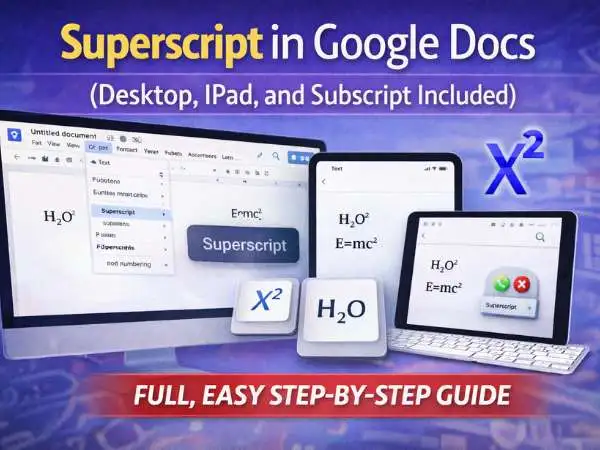
If you’re searching for superscript in Google Docs, here’s the quick answer:
Highlight the text → Click Format → Choose Text → Select Superscript.
On Windows, press Ctrl + .
On Mac, press Command + .
That’s the basic method.
But if you’re working on academic papers, math equations, chemical formulas, or editing on an iPad, you’ll want a deeper understanding. Superscript and subscript formatting looks small on screen, yet it changes how professional your document feels.
I use these features constantly when drafting reports and structured documents. And I’ve noticed something—most users don’t fully understand when to use superscript, when to use subscript, or how to troubleshoot formatting issues.
So let’s walk through it properly.
also read : – LESS Programming Language for Beginners: A Simple Guide to Start Using LESS
What Is Superscript in Google Docs?
Superscript is text that appears slightly above the normal typing line. It’s smaller and raised.
You’ve seen it before:
- 10²
- x³
- 1st
- 4th
- Citation markers like¹
That small shift in position makes meaning clear.
Imagine typing 10² without formatting. It would read as 102. That changes the entire meaning. In academic writing, that difference matters.
Superscript is commonly used in:
- Exponents
- Ordinal numbers
- Footnotes
- Trademarks
- Scientific notation
It’s subtle, but it signals accuracy.
When I review documents for clients, incorrect exponent formatting is one of the first things I notice. It doesn’t break the document, but it reduces polish.
Small details shape perception.
How to Add Superscript in Google Docs (Desktop)
Let’s start with desktop since most users work from laptops.
Method 1: Using the Menu
- Highlight the text you want to change.
- Click Format in the top navigation bar.
- Hover over Text.
- Click Superscript.
The selected text instantly shifts upward and shrinks slightly.
This method is reliable. It works in all browsers.
If you’re editing slowly or formatting carefully, the menu option keeps things precise.
also read : – Zoomee- Definition, Image, Photo, Fourmi, Vue- Know in Detail
Method 2: Keyboard Shortcut (Faster Workflow)
If you type frequently and want speed, shortcuts are better.
- Windows: Ctrl + .
- Mac: Command + .
Highlight the text first. Then press the shortcut.
I personally use shortcuts when adding footnote markers repeatedly. It saves seconds each time. Over long documents, that adds up.
Speed matters when formatting dozens of references.
How to Turn Superscript Off
If your typing suddenly appears raised and small, you likely toggled superscript accidentally.
To turn it off:
- Highlight the text.
- Press the same shortcut again.
- Or go back to Format → Text → Superscript.
It works like a switch.
Many people forget it’s a toggle and think something is broken. It isn’t.
Superscript and Subscript in Google Docs
Subscript is the opposite of superscript.
Instead of rising above the line, the text drops slightly below.
Examples:
- H₂O
- CO₂
- NaCl
- a₁
Subscript appears often in chemistry, physics, and technical documentation.
How to Add Subscript
- Highlight the text.
- Click Format.
- Click Text.
- Choose Subscript.
Shortcut:
- Windows: Ctrl + ,
- Mac: Command + ,
Notice the difference.
Period key for superscript.
Comma key for subscript.
Comma sits lower on the keyboard. That’s how I remember it.
It sounds simple, but that mental trick helps when typing quickly.
also read : – Improving Healthcare Services With Cloud Solutions
When Should You Use Superscript vs Subscript?
Superscript is used for:
- Exponents (x²)
- Ordinal numbers (21st)
- Footnotes
- Mathematical powers
Subscript is used for:
- Chemical formulas
- Scientific labeling
- Variable indexing
Using the wrong format can confuse readers.
For example:
H2O looks informal.
H₂O looks correct.
That small formatting shift signals credibility.
How to Add Superscript in Google Docs iPad
The iPad version works differently from desktop. The layout is simplified.
Here’s how to do it properly.
- Open your document in the Google Docs app.
- Highlight the text.
- Tap the A formatting icon at the top.
- Go to the Text section.
- Scroll until you see Superscript.
- Tap it.
It applies instantly.
The first time I used Docs on iPad, I searched the main toolbar for superscript. It wasn’t there. The option hides inside the formatting panel.
Once you know that, it’s easy.
Using an External Keyboard on iPad
If you use a keyboard with your iPad, try:
Command + .
Some versions support it.
If it doesn’t respond, use the on-screen formatting panel instead.
Keyboard support can vary depending on app updates.
Using Superscript in Academic Writing
If you’re writing essays or research papers, superscript often appears in citations.
Google Docs automatically formats footnote numbers as superscript when you use:
Insert → Footnote
So you don’t need to manually apply superscript for standard footnotes.
But if you’re writing inline references or formatting ordinal numbers, you still need to use it manually.
Proper formatting improves readability.
I’ve edited documents where citation numbers were left in normal text. It looked unfinished.
Formatting shows care.
Using Superscript in Equations
If you’re writing mathematical equations frequently, consider using:
Insert → Equation
When you type “x^2” inside equation mode, Docs converts it to superscript automatically.
This method works better for complex formulas.
Manual superscript works for quick edits. Equation mode works for structured math documents.
Choose based on your need.
also read : – What are MyStalk and its alternatives? -Instagram Anonymous Content Viewer?
Common Superscript Problems and Fixes
Let’s troubleshoot common issues.
Shortcut Not Working
Check your keyboard layout.
Make sure you’re pressing period, not another symbol.
Try refreshing the page.
Formatting Breaks After Copy-Paste
If you paste from another program, formatting may change.
Solution:
Paste as plain text.
Then apply superscript manually.
Superscript Option Missing
Update your browser.
Or try another browser like Chrome.
Google Docs features sometimes behave differently across outdated browsers.
Why Superscript Formatting Matters
It may seem minor.
But formatting affects credibility.
If you’re submitting:
- Research assignments
- Lab reports
- Academic papers
- Legal drafts
- Business presentations
Accuracy in formatting reflects attention to detail.
Readers may not consciously notice perfect formatting.
But they definitely notice when it’s wrong.
Precision builds trust.
Real-World Examples
Here’s what correct formatting looks like:
Area = 25 m²
5³ = 125
21st century
E = mc²
Subscript examples:
CO₂ emissions
H₂O composition
O₂ levels
When formatted properly, your document reads smoothly.
Without formatting, it feels incomplete.
also read : – Small Business Phone System Features You Will Want
Final Thoughts
If you need superscript in Google Docs:
Highlight text → Format → Text → Superscript.
Or use:
Ctrl + . (Windows)
Command + . (Mac)
For subscript:
Ctrl + ,
Command + ,
On iPad, use the formatting panel.
It’s simple once you practice it.
Formatting may seem like a small detail. But small details separate average documents from polished ones.
Try it in your current document. Add an exponent. Add a subscript. Notice the difference.
It’s subtle. But it matters.
FAQ
How do I add superscript in Google Docs?
Highlight text → Format → Text → Superscript.
What is the shortcut for superscript in Google Docs?
Ctrl + . (Windows) or Command + . (Mac).
How to add superscript in Google Docs iPad?
Highlight text → Tap A formatting icon → Select Superscript.
What is the difference between superscript and subscript?
Superscript appears above the line. Subscript appears below.
Why is superscript not working?
Check shortcuts, formatting panel, or browser version.